
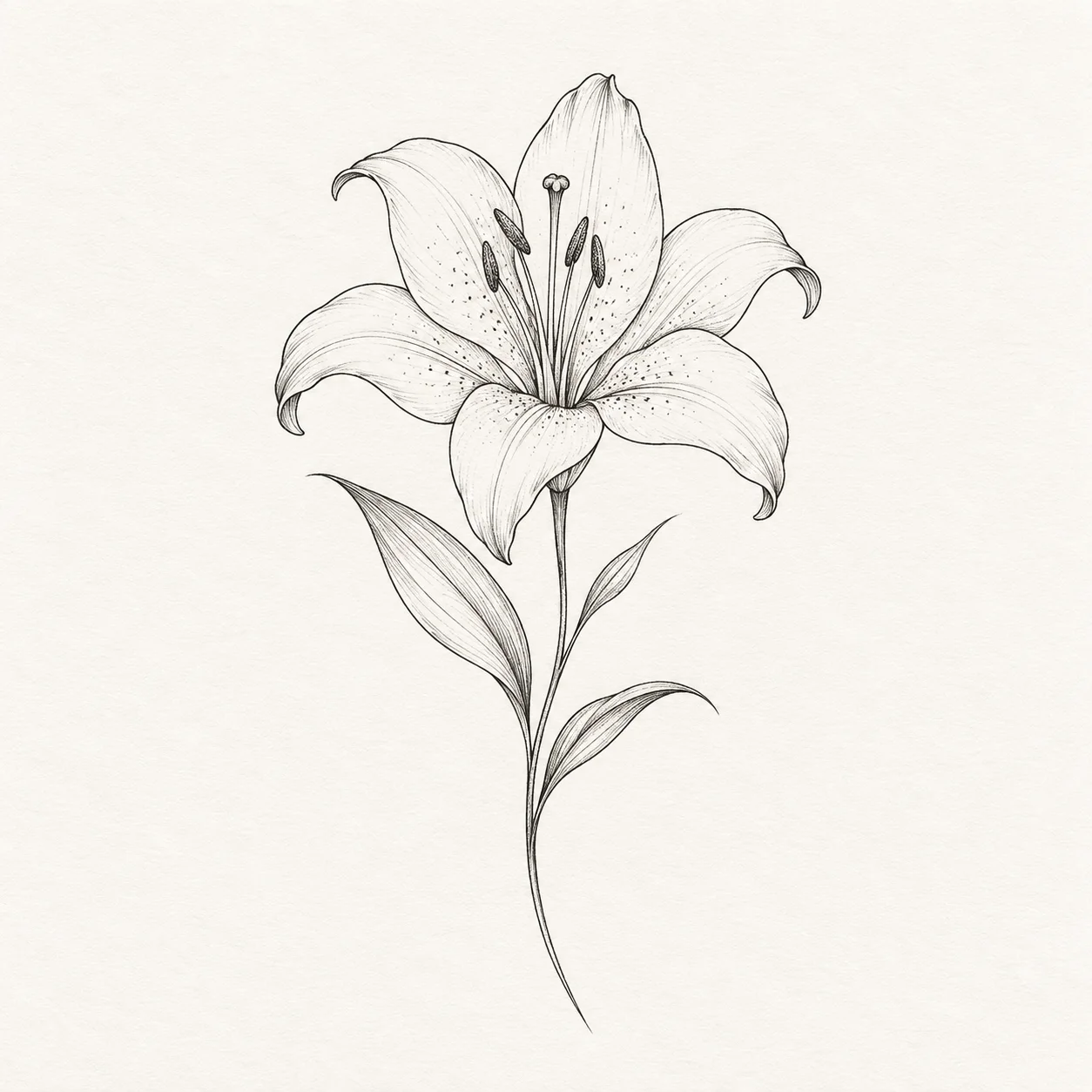
Fine-line
Delicate botanical contours
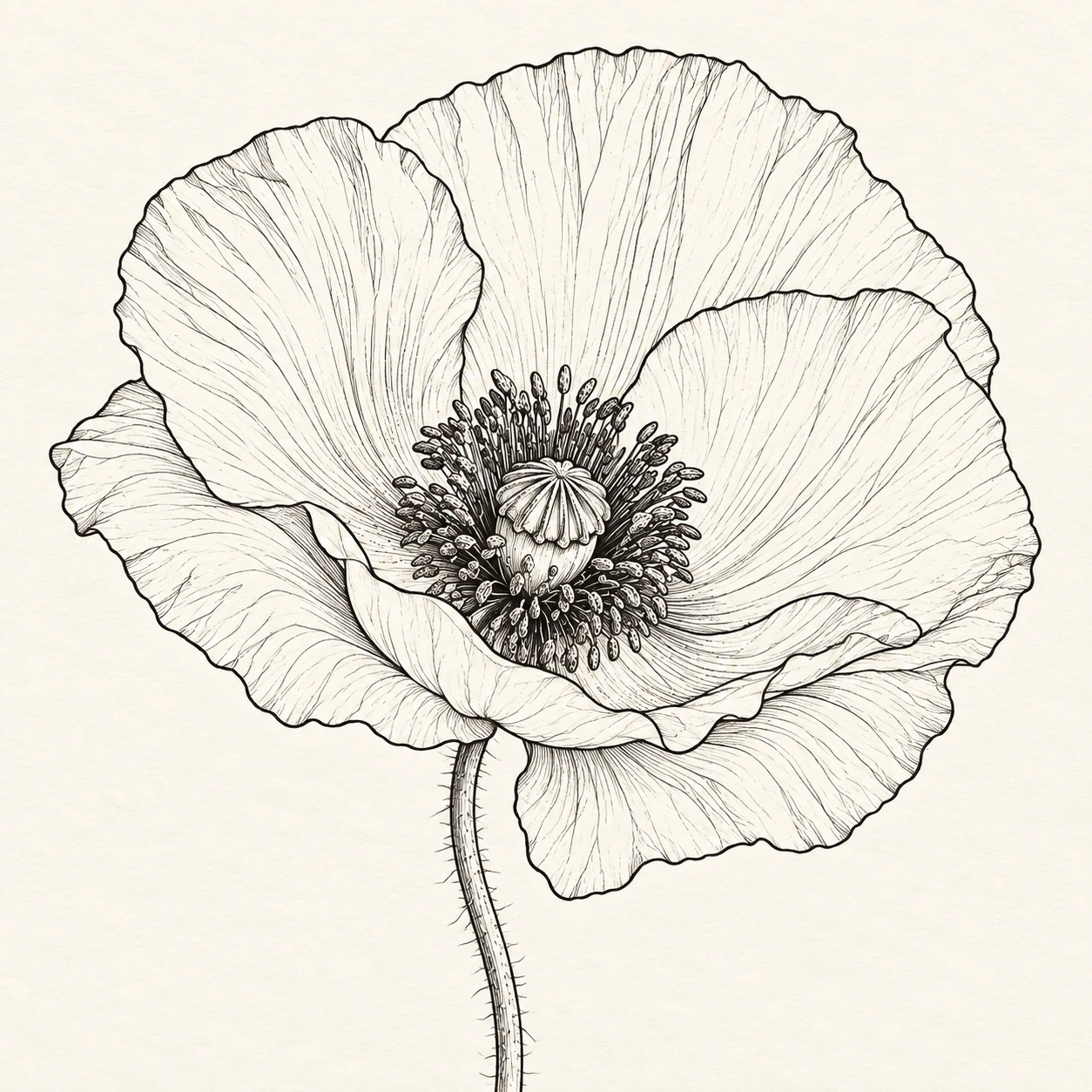
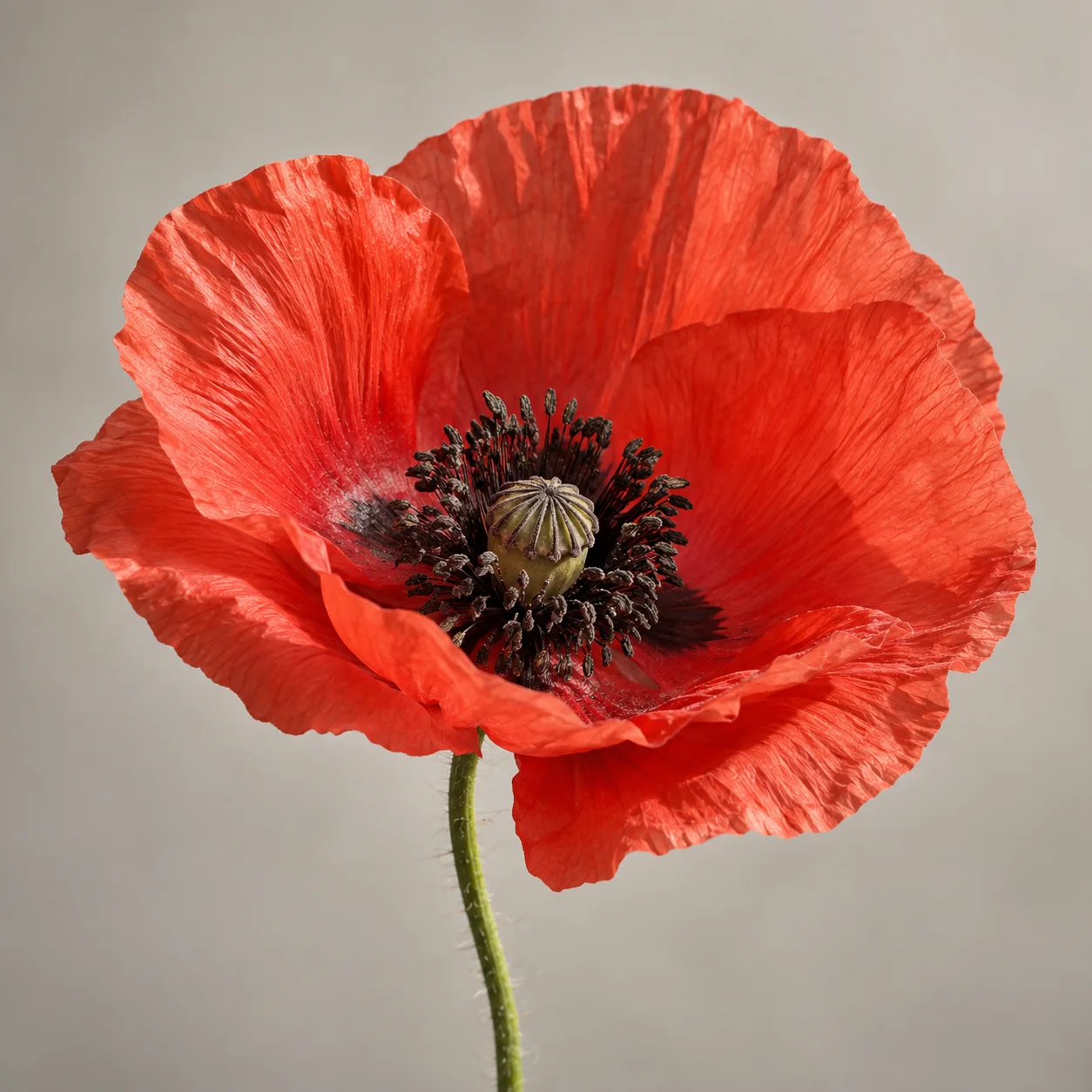
Recent tattoo outputs from this tool.
No generated results yet.
Upload an image above to create your first tattoo output.
Image to tattoo
Start with an image you already have. Choose a tattoo style and detail level, then compare the result before you download it or try it on.
Try the Image to Tattoo GeneratorStyle references
Delicate botanical contours
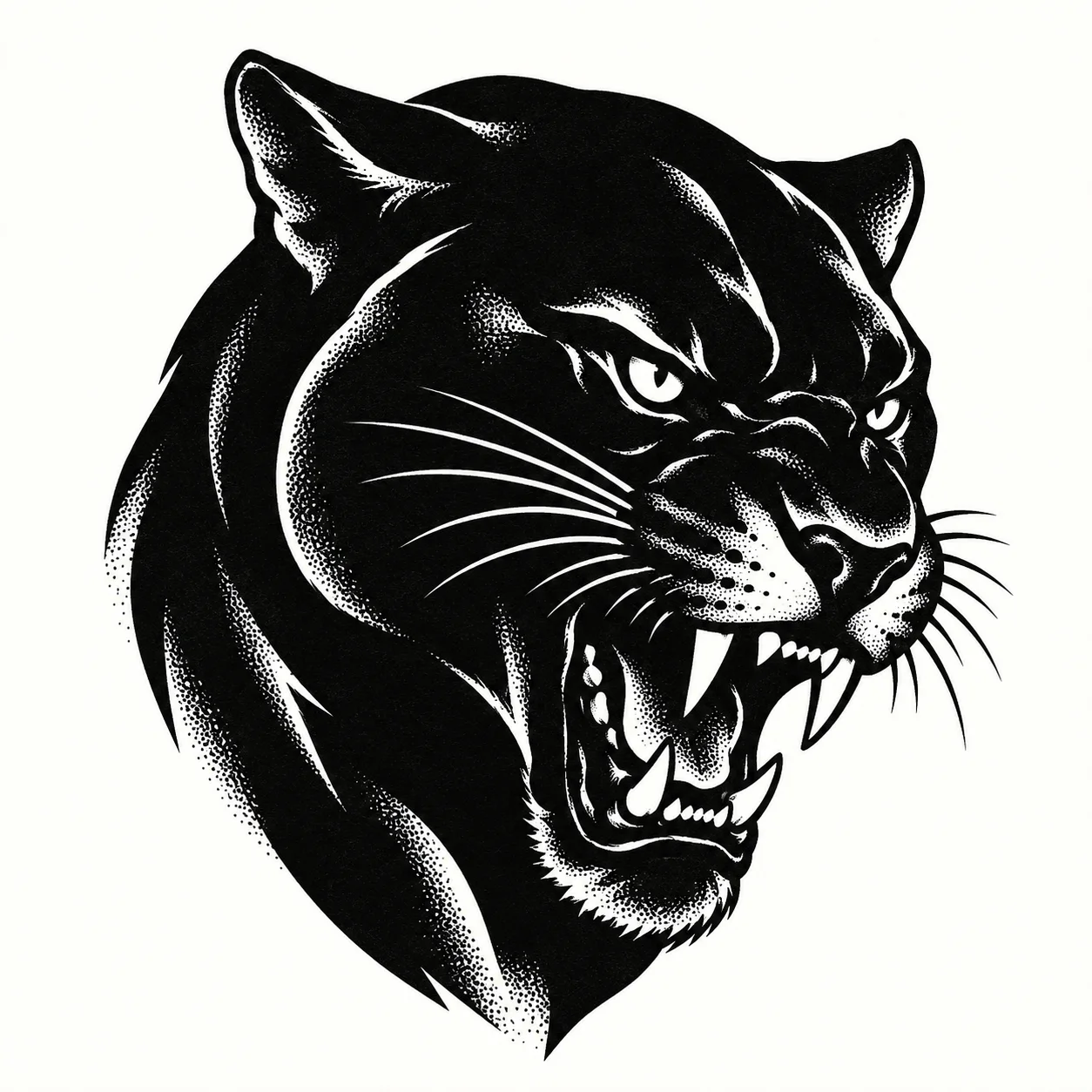
Solid black shape and negative space
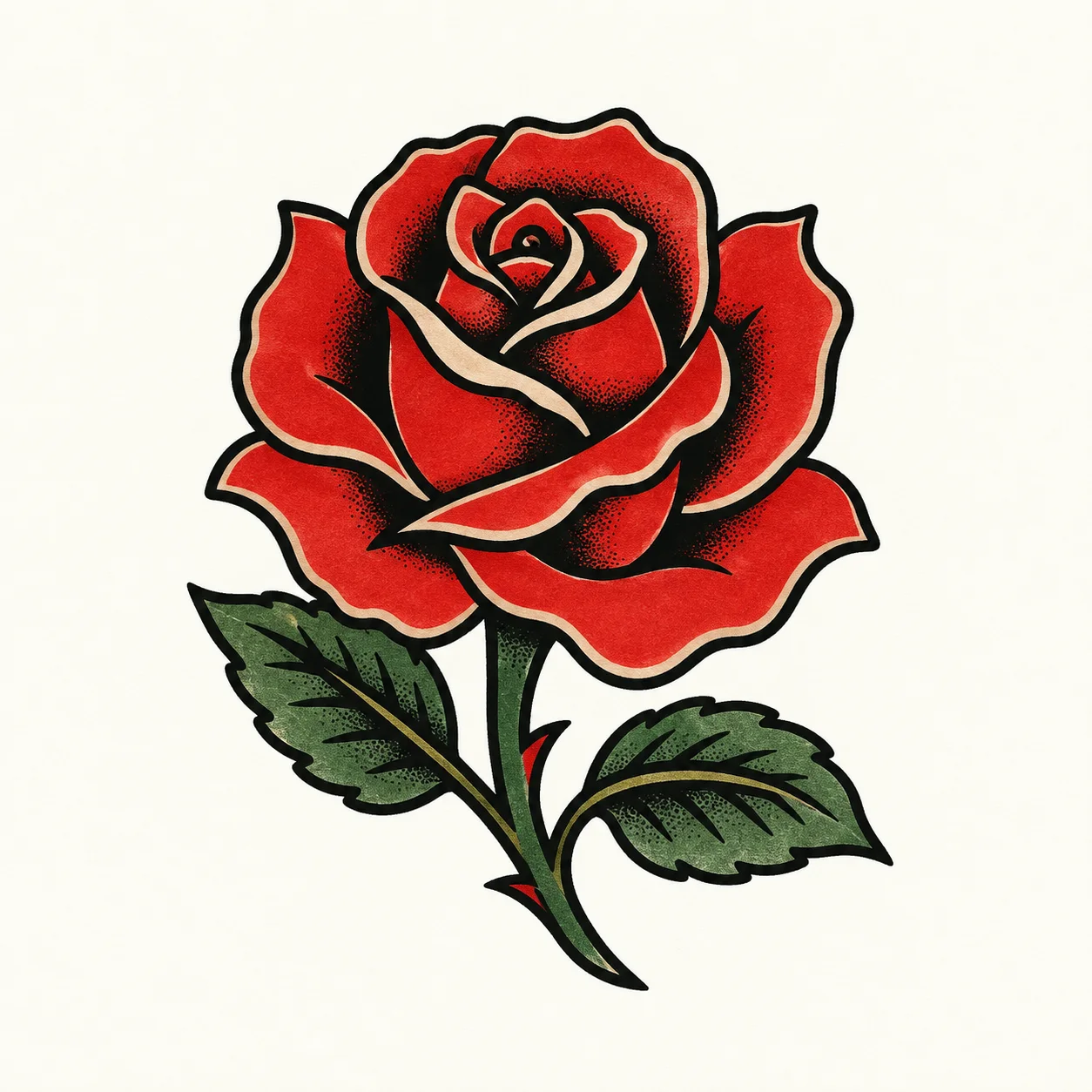
Bold outline and limited color
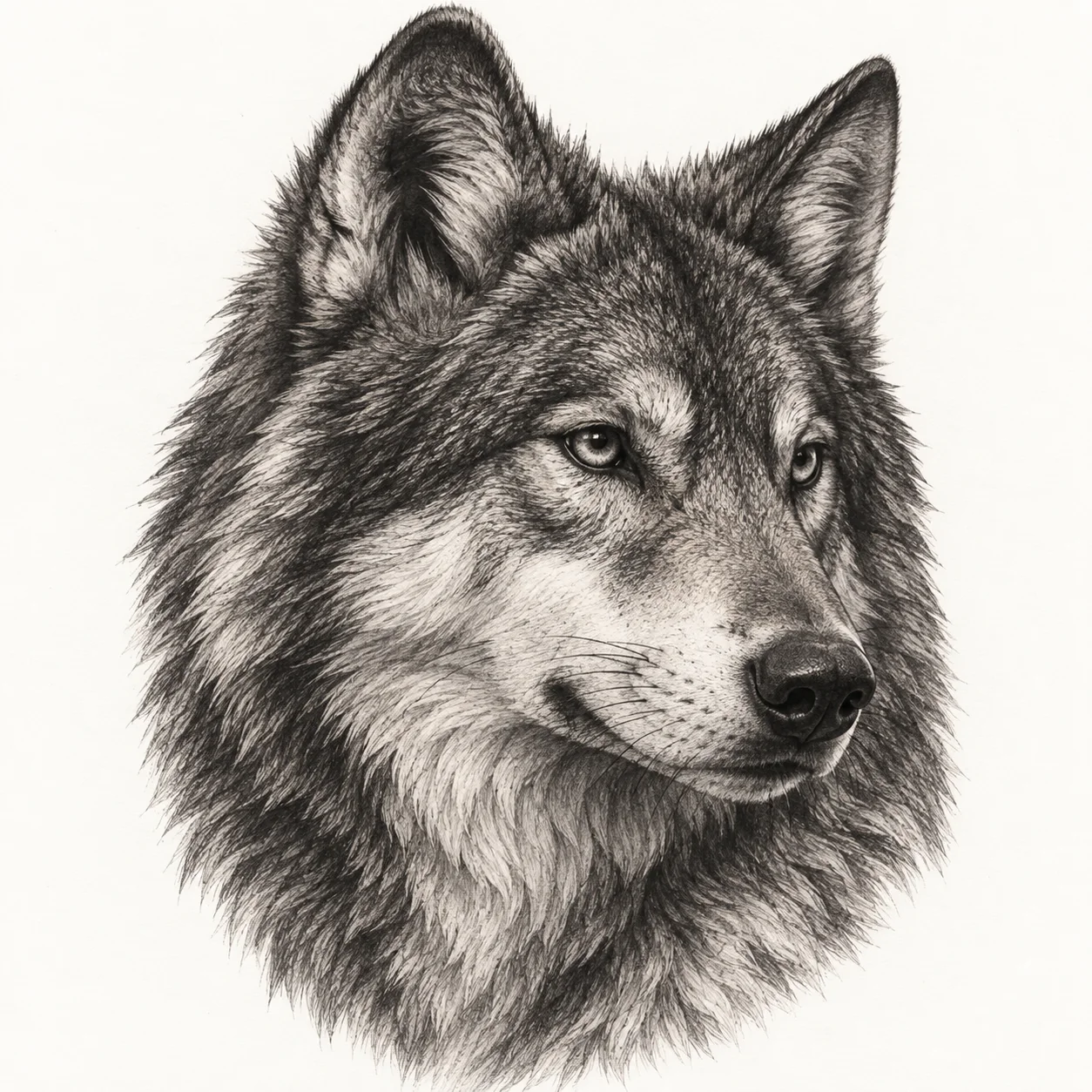
Black-and-gray tonal detail
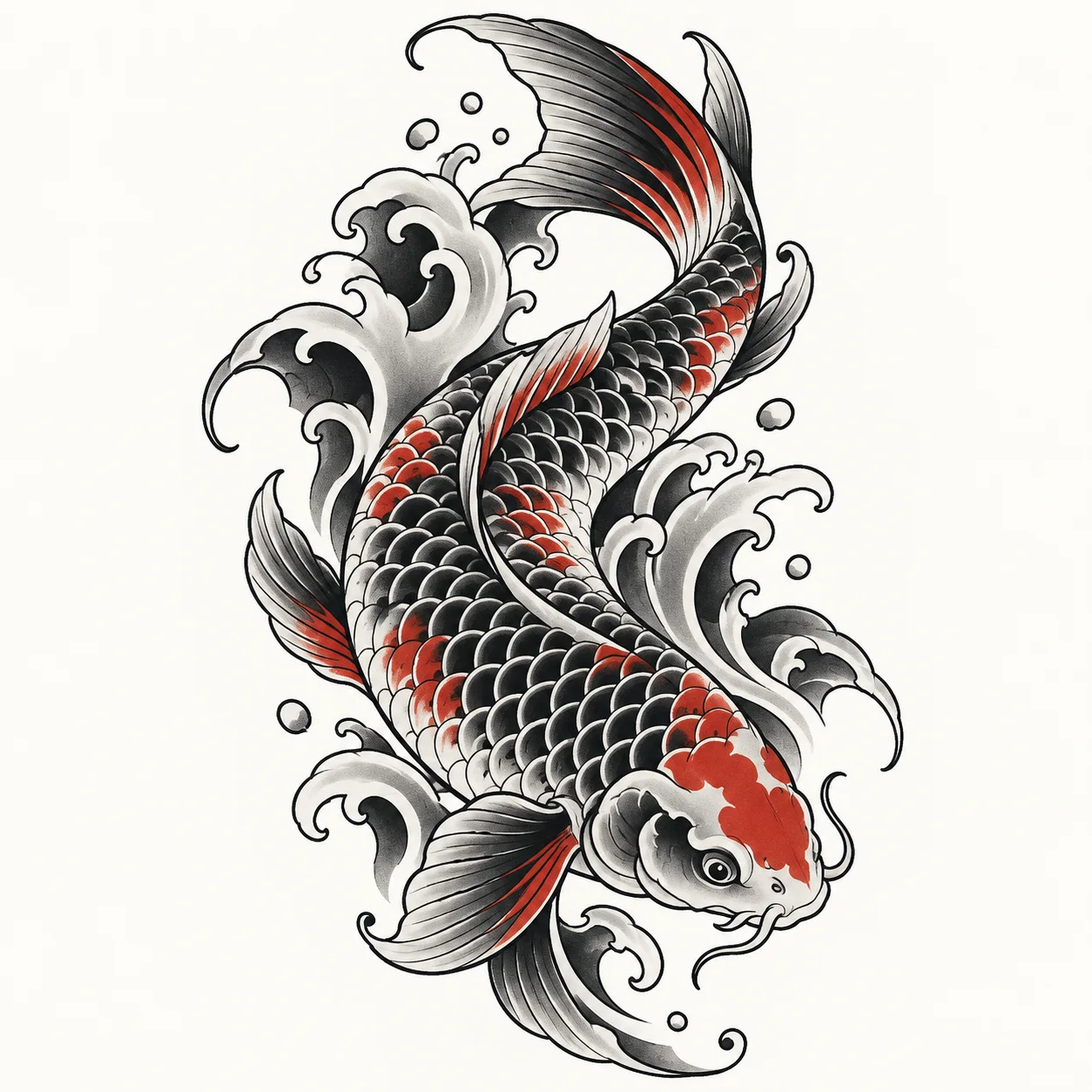
Flowing contours and scale rhythm
Make the source work
A useful image to tattoo result keeps the recognizable idea in your source while changing its visual language. Start with one clear subject—a flower, pet, portrait, symbol, or sketch—with enough contrast around its edges. The goal is a tattoo design reference you can compare and discuss, not an automatic final transfer stencil.
A focused photo or drawing gives the image to tattoo workflow a stronger silhouette to preserve. Crop away unrelated objects, keep the important edges visible, and avoid glare or motion blur when possible.
Fine-line emphasizes open space and restrained contours. Blackwork and Traditional create stronger contrast, while Realistic and Japanese keep more tonal or flowing detail for a fuller design direction.
Simple prioritizes the main shape, Balanced preserves defining structure, and Detailed keeps more source information. More detail is useful only when the line spacing and negative space remain clear at the intended tattoo size.
Compare the original image and result, check that the subject is still recognizable, and ask your tattoo artist to refine scale, line weight, placement, and technique before the design is used on skin. This makes the workflow useful for collecting ideas before an appointment: you can compare several directions without losing sight of the source image or the practical limits of tattoo linework.
Plan the next step
Keep the subject recognizable before refining the design reference.
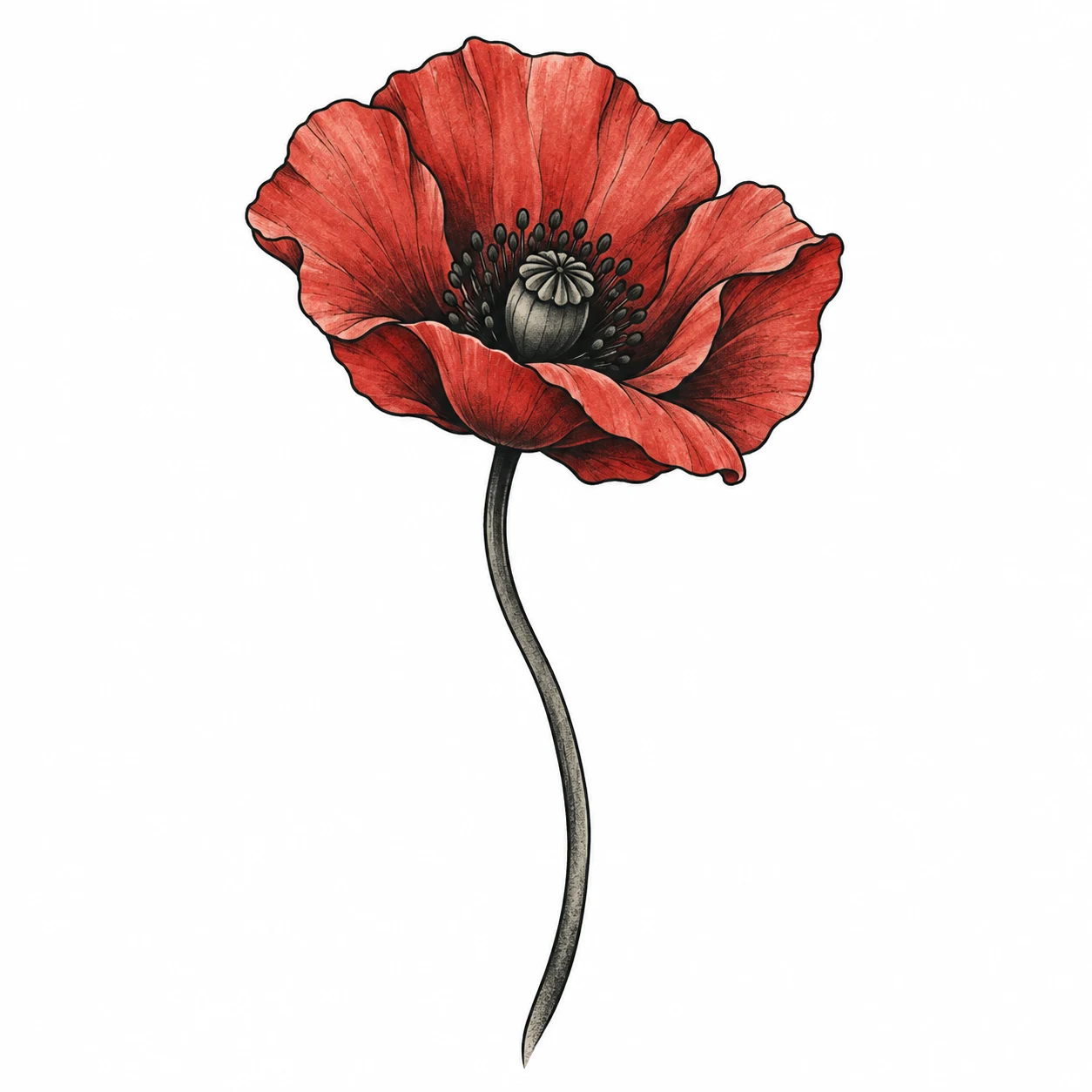
Check the silhouette, line weight, and open space before downloading.
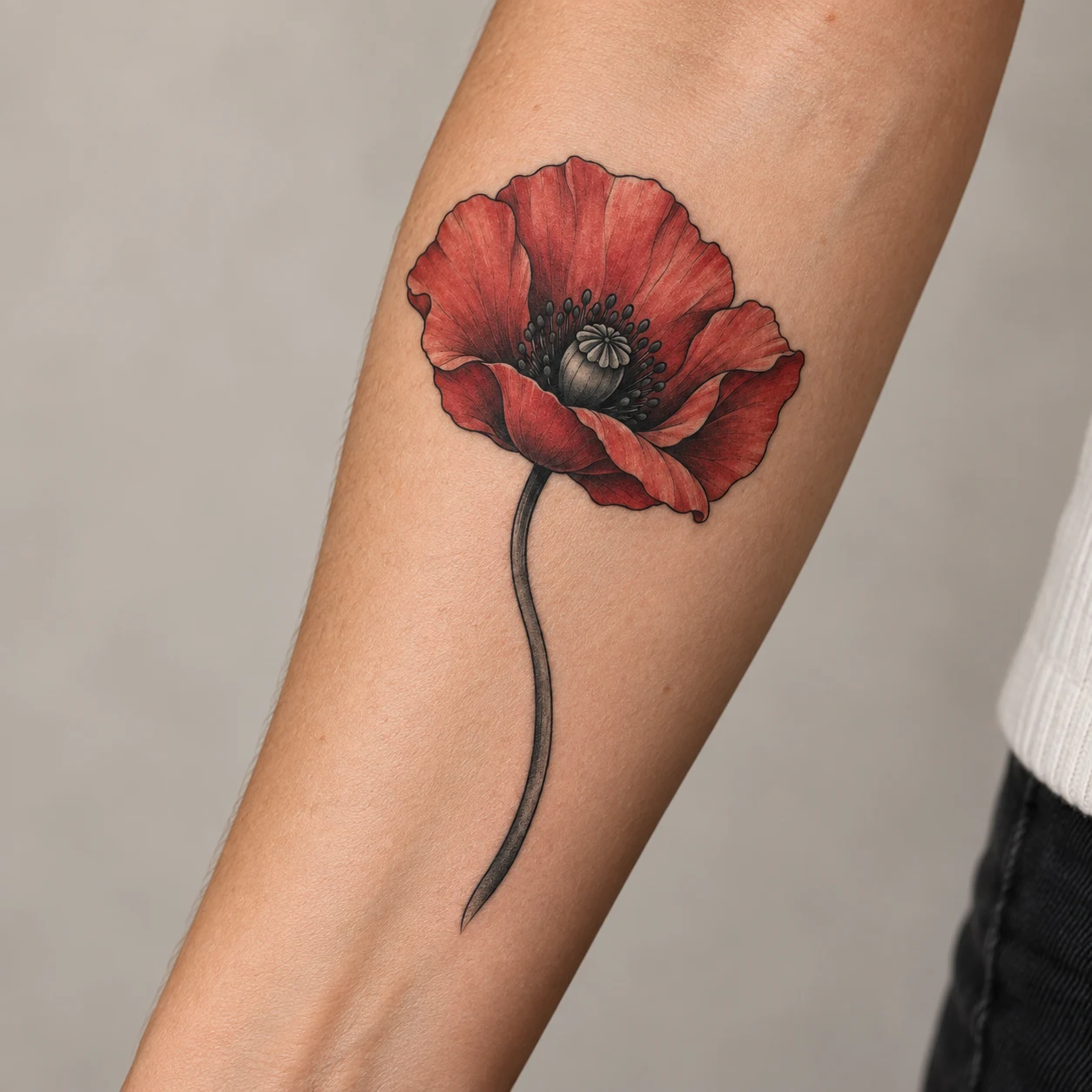
Learn about trial credits, image preparation, downloads, and reviewing your design with a tattoo artist.
Yes. Trial credits let you try the image to tattoo generator before buying a credit pack. If you need more generations, you can buy a one-time credit pack. There is no subscription, and the credit cost is shown before each generation.
Upload a photo or sketch, choose a tattoo style and detail level, and generate a tattoo design reference. Compare the result with your original to check that the subject is still recognizable, then download the PNG to review or discuss with your tattoo artist.
Use a clear JPG, PNG, or WebP with one recognizable subject, such as a flower, pet, portrait, symbol, or sketch. Crop away unrelated details and keep the important edges visible. Readable contrast, even lighting, and little glare or motion blur make the result easier to review.
Every generated result includes a downloadable PNG for reviewing, editing, or discussing with your tattoo artist. Use the result as a design reference and confirm the final size, line weight, and details before tattooing.
Use the result as a design-preparation reference, not as a final tattoo transfer sheet. Before tattooing, ask your artist to confirm the scale, line weight, placement, orientation, and any details that need adjusting for skin or technique.
Uploads and generated results are not listed in a public gallery. Images may be accessible to anyone with their direct asset link, and AI model providers may process them to produce your requested output. Only upload artwork or photos you have permission to use, and review the Privacy Policy for data-handling details.